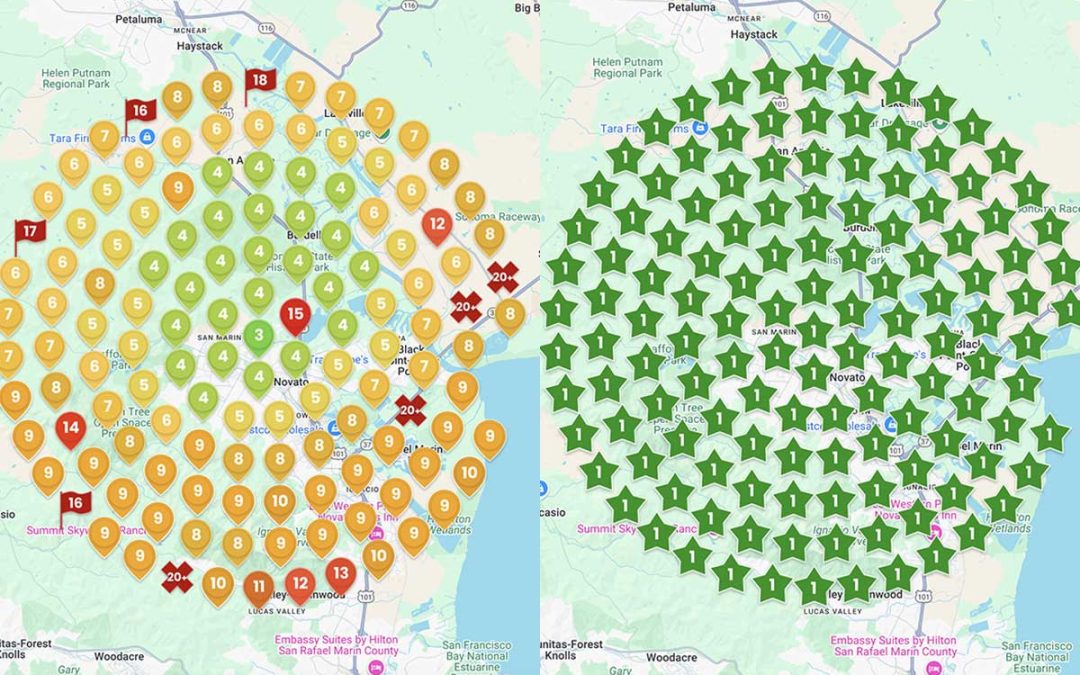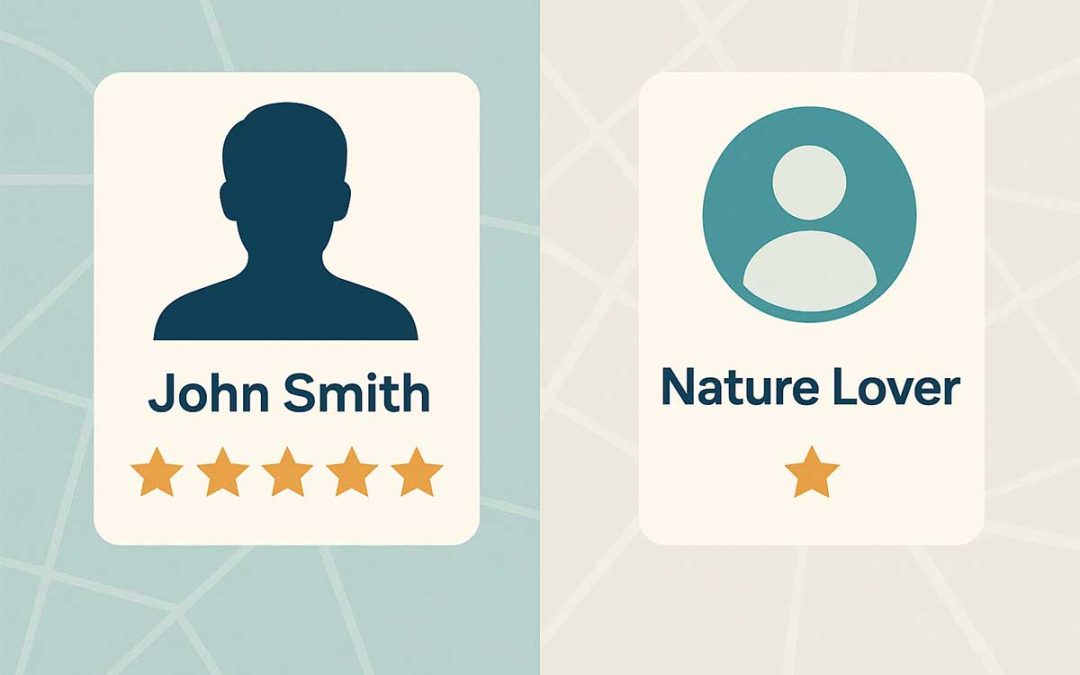
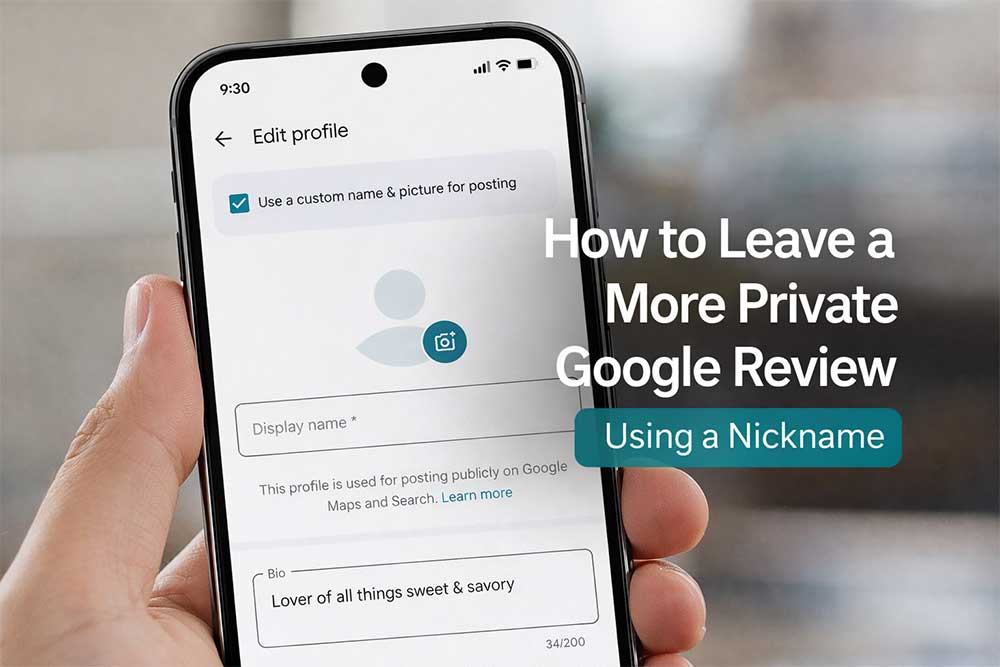
Many people want to leave a review to support a business they trust, but feel uneasy having their real name displayed publicly. That concern can be even stronger for addiction treatment and behavioral health programs. Google Maps is rolling out a feature that lets you use a nickname (display name) and separate profile photo for reviews, so your public review does not have to show your Google Account name.
Want the full context? We broke down what changed, why it matters for addiction treatment and behavioral health programs, and how providers can update review SOPs here:
https://www.prodigitalhealthcare.com/new-anonymous-google-reviews-what-addiction-behavioral-health-centers-need-to-know/
Before you start
This entire process needs to be done on your phone using the Google Maps app, not on a desktop computer.
Download Google Maps if you do not already have it:
- iPhone (App Store): https://apps.apple.com/us/app/google-maps/id585027354
- Android (Google Play): https://play.google.com/store/apps/details?id=com.google.android.apps.maps&hl=en_US
Sign into the Google account you use for reviews.
Watch Google’s quick demo (recommended)
If you prefer to follow along visually, this short video shows where to find the settings in the Google Maps app to change your review name and picture.
Step 1: Set your nickname and picture for reviews (phone only)
iPhone and iPad
- Open the Google Maps app on your phone.
- Tap your profile icon (top right).
- Tap Your profile.
- Tap Edit profile.
- Look for an option that lets you use a custom name and picture for posting (the wording may vary).
- Enter a display name (your nickname).
- Choose a profile photo (many people use an illustration or non-identifying image).
- Tap Save.
Android
- Open the Google Maps app on your phone.
- Tap your profile icon (top right).
- Tap Your profile.
- Tap Edit profile.
- Look for an option that lets you use a custom name and picture for posting.
- Update your display name and profile photo.
- Tap Save.
If you do not see the nickname option yet
This feature is still rolling out, so it may not appear on every account right away. Try these quick fixes:
- Update the Google Maps app
- Fully close the app, then reopen it
- Confirm you are signed into the correct Google account
Step 2: Leave your review in Google Maps
Once your nickname is set, you can post a review like normal:
- Open Google Maps.
- Search for the business name.
- Tap the business listing to open it.
- Tap Reviews.
- Tap Write a review.
- Choose your star rating and write your review.
- Tap Post.
Tips for writing a review with more privacy
A nickname helps, but your review content matters too. If privacy is your priority:
- Skip last names, full staff names, and exact dates
- Avoid personal health details you would not want online
- Focus on general experience, like respect, communication, and support
Here are two safe starters you can adapt:
- “I felt respected and supported from the first call through the program. The team communicated clearly and the environment felt safe.”
- “This program helped me get stable and build healthier routines. Staff were consistent, organized, and treated people with dignity.”
For treatment centers sharing these steps with clients
When you share this guide with alumni or current clients:
- Keep it optional and pressure-free
- Do not offer incentives for reviews
- Remind people not to share personal health information in a public post
- Offer a private feedback option too (email form or survey) for anyone who prefers not to post publicly
Closing note
Leaving a review should not feel like you are giving up your privacy. Using a nickname and a separate review photo can make it feel safer to share your experience publicly.
Keep your review simple and protect your personal details. Focus on what mattered most, like how you were treated, how communication felt, and whether the environment supported your wellbeing. If you would rather not post publicly, that is okay too. You can always share feedback privately with the program instead.
When you are ready, open Google Maps on your phone, set your nickname, and leave a review in a way that feels comfortable for you.